
WordCraft Headers, Footers and Page Numbers: Use Section Breaks
Set up a cover and numbered report, understand section boundaries, and diagnose repeated headers or unexpected blank pages.
A report often needs a cover with no page number, a numbered body and perhaps a landscape appendix. These requirements belong to the document's sections and header/footer settings. Repeatedly pressing Enter or typing page numbers by hand may look right initially, but it breaks when text moves. Build a small sample first so the section behavior is clear before applying it to a long document.
Plan the sections and insert the correct break
Create three short parts: a cover, two pages of body text and an appendix. Decide whether the cover is simply a different first page or a separate section with its own numbering. A different-first-page setting can handle a simple unnumbered cover; a separate section is useful when you need a distinct numbering sequence or other page settings.
Place the caret before the body and open Layout, then Breaks. Choose a Next Page section break for a body that should start on the following page. The upstream Layout controls also distinguish continuous, even-page and odd-page section breaks. Choose deliberately: an odd-page start can create a blank page to reach the next odd page.
Enable formatting marks while setting this up. A page break moves content but does not create an independently configurable section. A section break can carry page-layout and header/footer relationships. Deleting one to remove a blank page can therefore change more than the visible gap.
Add headers and page-number fields
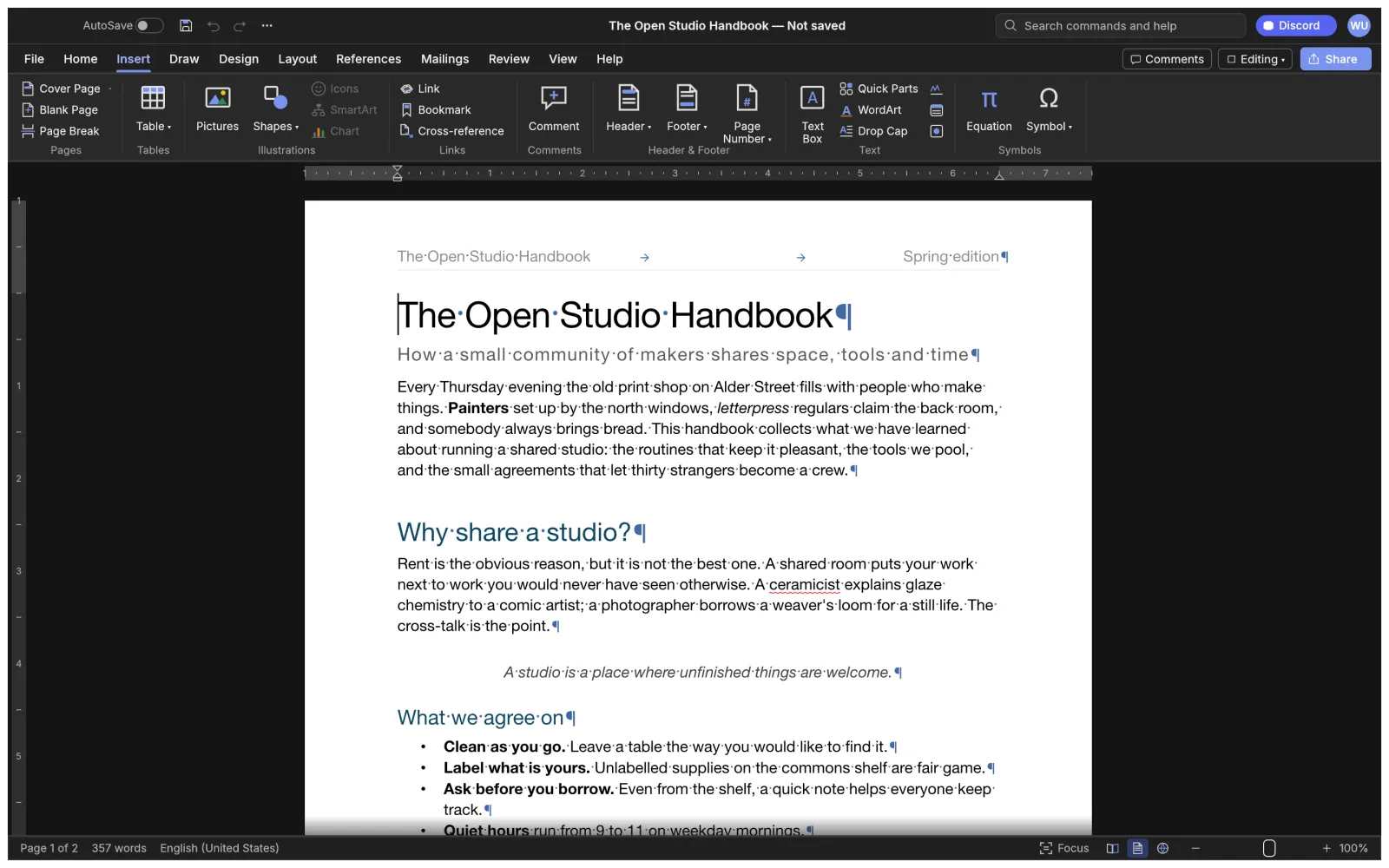
Use Insert, then Header or Footer, to edit the appropriate area. Add a short report title to the header and use the Page Number control for numbering. Insert a field rather than typing the numeral 1; a manually typed number repeats as literal text instead of following the page sequence.
With the caret in the body section, inspect its header/footer options. If the body should differ from the cover, check the link-to-previous relationship before editing shared content. A linked header may reflect a change in adjacent sections. Review the first-page and odd/even variants separately when they are enabled.
Use Format Page Numbers to choose continuation or a new starting number where the current build exposes those controls. Confirm the result on several pages rather than looking only at the first body page. If the document requires Roman numerals in front matter and Arabic numerals in the body, test that arrangement on a short sample and reopen the saved DOCX before relying on it.
Check an appendix and diagnose surprises
Insert another Next Page section break before an appendix that needs different page orientation. Apply the layout change with the caret in the intended section and inspect both sides of the boundary. Check that headers and footers fit the new page width and that numbering continues or restarts as intended.
If a header appears unexpectedly, inspect which variant is being shown and whether it is linked. If numbering restarts twice, inspect both section boundaries and their number-format settings. If an empty page appears, check odd/even breaks and paragraph page-break settings before deleting content.
Save a new DOCX, reopen it, and inspect the first and last page of every section. Export a PDF for a second visual check. Include the cover in the inspection even when it intentionally has no visible number. For a longer report, continue with automatic table-of-contents setup; if another editor changes the layout, use the DOCX compatibility assessment.
Independent editorial guidance. See our sources and correction policy.