Documents & compatibility
WordCraft Guide: Check DOCX Compatibility Before You Switch
Evaluate WordCraft with your own documents. Test fonts, page layout, tables, tracked changes and DOCX round trips before moving a writing workflow.
Last updated: 2026-11-05 · 9 min read
If you are researching WordCraft as a word processor, the useful question is specific: will it handle the documents you create, edit and exchange? An application can open a file successfully while still changing a page break, substituting a font or presenting review information differently. A sensible evaluation checks the whole journey, from opening an original to delivering the edited result.
This guide gives you a practical comparison method. It is a workflow you can run with your own files, not a claim that every feature has perfect parity with another editor. For an introduction to the interface, read the WordCraft app beginner guide. For the editor and downloads, start at the homepage.
Define what a successful switch means
WordCraft is an open-source word processor from ArtCraft, with DOCX support and desktop and browser builds. The official repository describes the project, while its roadmap is a useful place to check development status. Use those sources for current product claims, then use your documents to evaluate practical fit.
Write down three things you must preserve. For a student, these might be heading structure, citations and a readable PDF. For a small business, they might be a letterhead, a pricing table and an editable file that a client can return. For an editor, comments and revision handling may matter more than decorative page elements.
Also define what you can change. If your internal meeting notes do not need an exact historical layout, a different line break may be harmless. If a form must fit a preprinted page, a small shift may be unacceptable. The same visual difference can be a minor issue in one workflow and a blocker in another.
Avoid evaluating against an imaginary “all documents” requirement. Choose a small set of concrete tasks and decide what evidence would make each task pass. A written acceptance checklist keeps the comparison focused and prevents a pleasing first screenshot from standing in for a complete test.
Choose three representative files
Make copies of three documents you understand well. Choose a simple file, a typical everyday file and a deliberately difficult file. Keep the originals in a separate folder and give the test copies clear names. Do not begin with the only copy of a deadline-sensitive document.
The simple file could be a two-page letter with headings and a numbered list. The everyday file could include a table, a logo and page numbers. The difficult file should represent real demands: a report with different sections, images near page boundaries, a table of contents or several reviewers' comments. Complexity should come from your work, not from a random stress-test file you would never use.
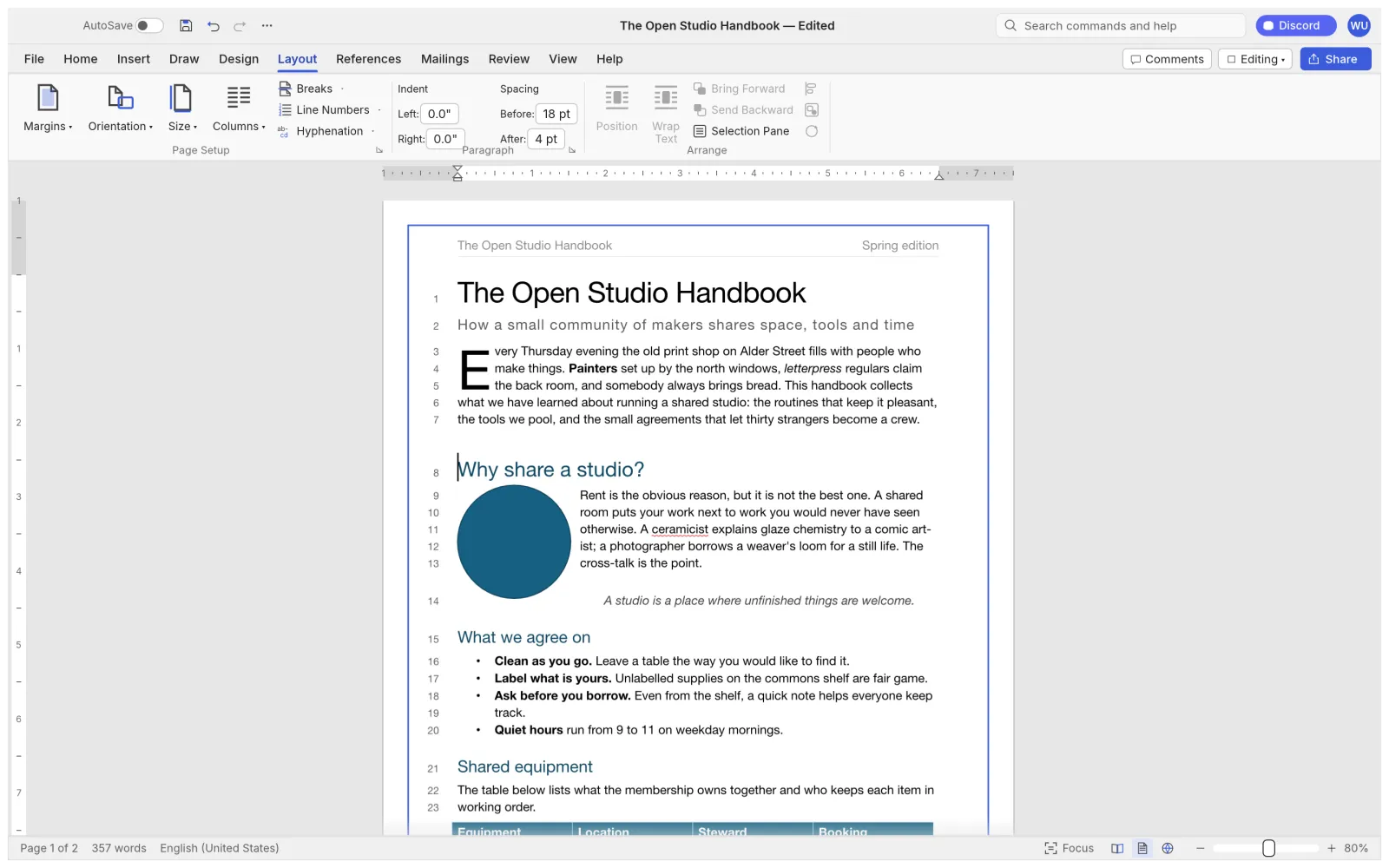
For each original, note the page count, paper size, main fonts and a few landmarks. Useful landmarks include the first line on page two, the total row of a table and the caption below an illustration. If you have access to the original application, make a reference PDF before editing. That gives you a visual baseline without changing the source.
Create a simple record with columns for File, Check, Expected result, Actual result and Decision. Write factual observations: “The final table row moves to page four,” rather than “formatting looks bad.” Specific records make later retesting much faster.
Run a controlled DOCX round-trip test
A round trip means opening a document, editing it, saving a new copy, then checking that copy in the application used by the recipient. It tests an actual exchange rather than merely the import step. When recipients use different software, test against the software that matters for the handoff.
- Open a duplicate of the original DOCX in WordCraft and inspect it before making changes.
- Make a small, recognizable edit, such as adding “Reviewed on Thursday” to a test paragraph.
- Save under a new name such as
report-wordcraft-test.docx. - Close and reopen that saved copy in WordCraft to check persistence.
- Open the same copy in the recipient's editor and compare it with the original and reference PDF.
- Record content changes separately from layout differences and unsupported behavior.
Keeping the edit small helps isolate the cause of a difference. If you rewrite half the report and redesign every page before comparing, it becomes difficult to tell whether a changed page count came from your edits or the file conversion.
Do not overwrite the original when the first test looks good. Complete the full checklist, including the last page and any material outside the main body. Headers, footers, notes and comments are easy to overlook because the opening page can look correct while later sections differ.
For a browser test, add a separate save-location check. Identify the exact downloaded or selected file and open that file from disk. Reopening an unchanged original by mistake can make a failed save look like a compatibility problem.
Check fonts, page geometry and tables in that order
Fonts: solve the foundation first
Font substitution changes character widths and can shift an entire document. Before adjusting margins or inserting manual breaks, check whether the expected fonts are available in the environment you are testing. A browser app and a native app do not necessarily have access to the same fonts.
Use a short paragraph containing the document's normal letters, numbers, punctuation and any required non-Latin text. Compare wrapping and spacing. If a substitute is being used, decide whether to supply a properly licensed font or standardize the document on a font available to everyone. Do not assume that installing a font on your computer automatically makes it available inside a browser editor.
Page geometry: compare the same settings
Confirm page size, orientation, margins, header spacing and footer spacing. Then inspect section boundaries. A file with both portrait and landscape pages needs checks on either side of the transition. Compare at a similar zoom level so that screen scaling does not become a distraction.
Resist fixing every shifted line with a manual page break. That may make one copy look right while making the next revision fragile. First identify whether the cause is a font difference, paragraph spacing, an object anchor or a page setting.
Tables and pictures: inspect the edges
Check the widest table and the table closest to a page boundary. Look for clipped text, changed column proportions, split rows and missing header repetition. For pictures, check the relationship between the image, caption and surrounding paragraphs, not just whether the image is visible.
A useful stress check is to add one sentence immediately before a floating object, then undo the change. Observe how the surrounding layout responds. If the behavior is unpredictable for the document you need to maintain, simplify the layout in a test copy or keep that document in its original editor.
Test review information and references separately
Review workflows deserve their own exercise. Take a duplicate with a known comment and a known tracked edit. Check whether you can identify the comment's target, read the text and distinguish an insertion from a deletion. Save the copy and have the recipient inspect the same items in their normal application.
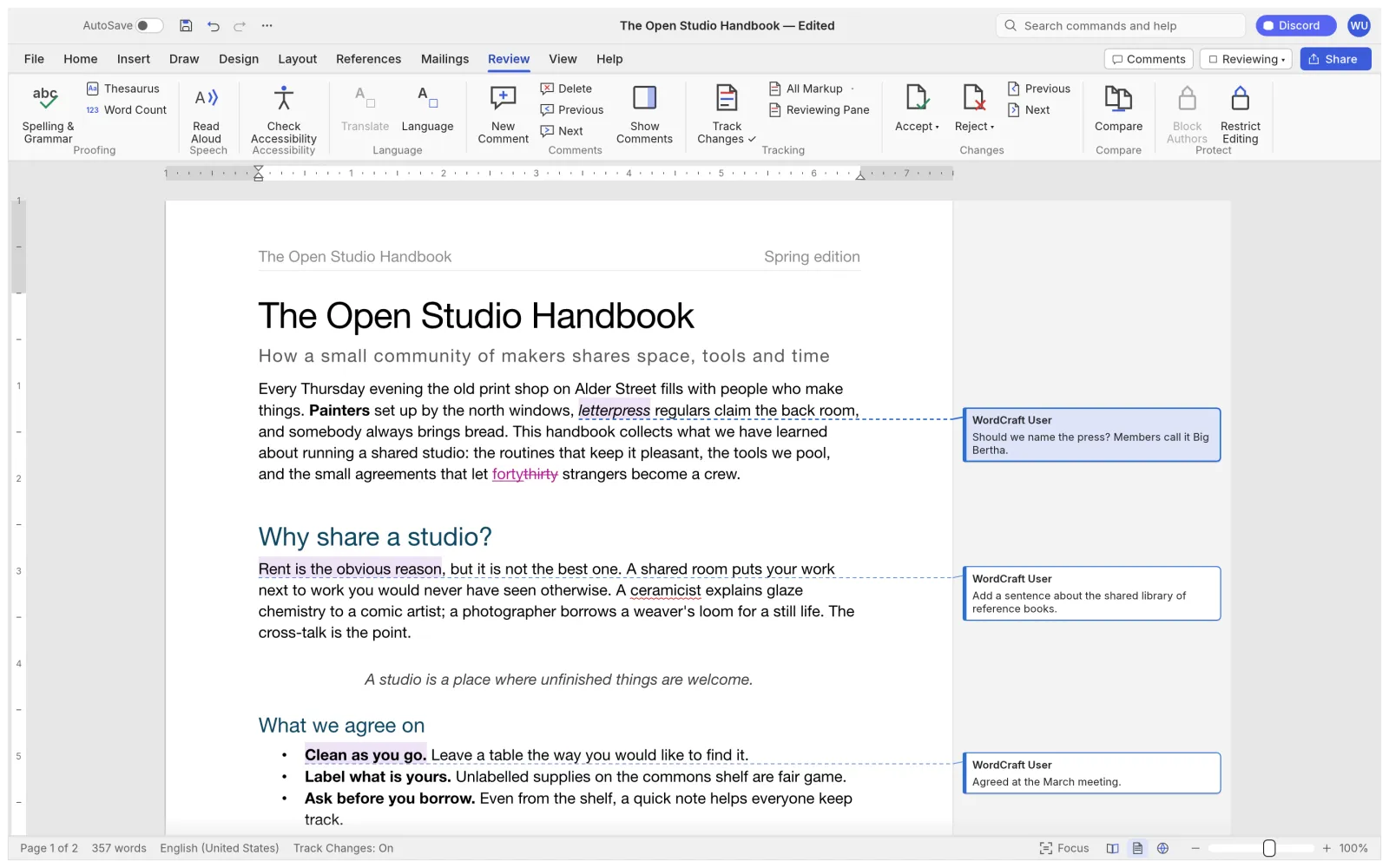
Write down what should happen when a change is accepted or rejected. Then test one change at a time. Do not use “accept all” as the first experiment on a document whose revisions you have not reviewed. A clean-looking document may simply have had information removed intentionally, so appearance alone cannot verify correctness.
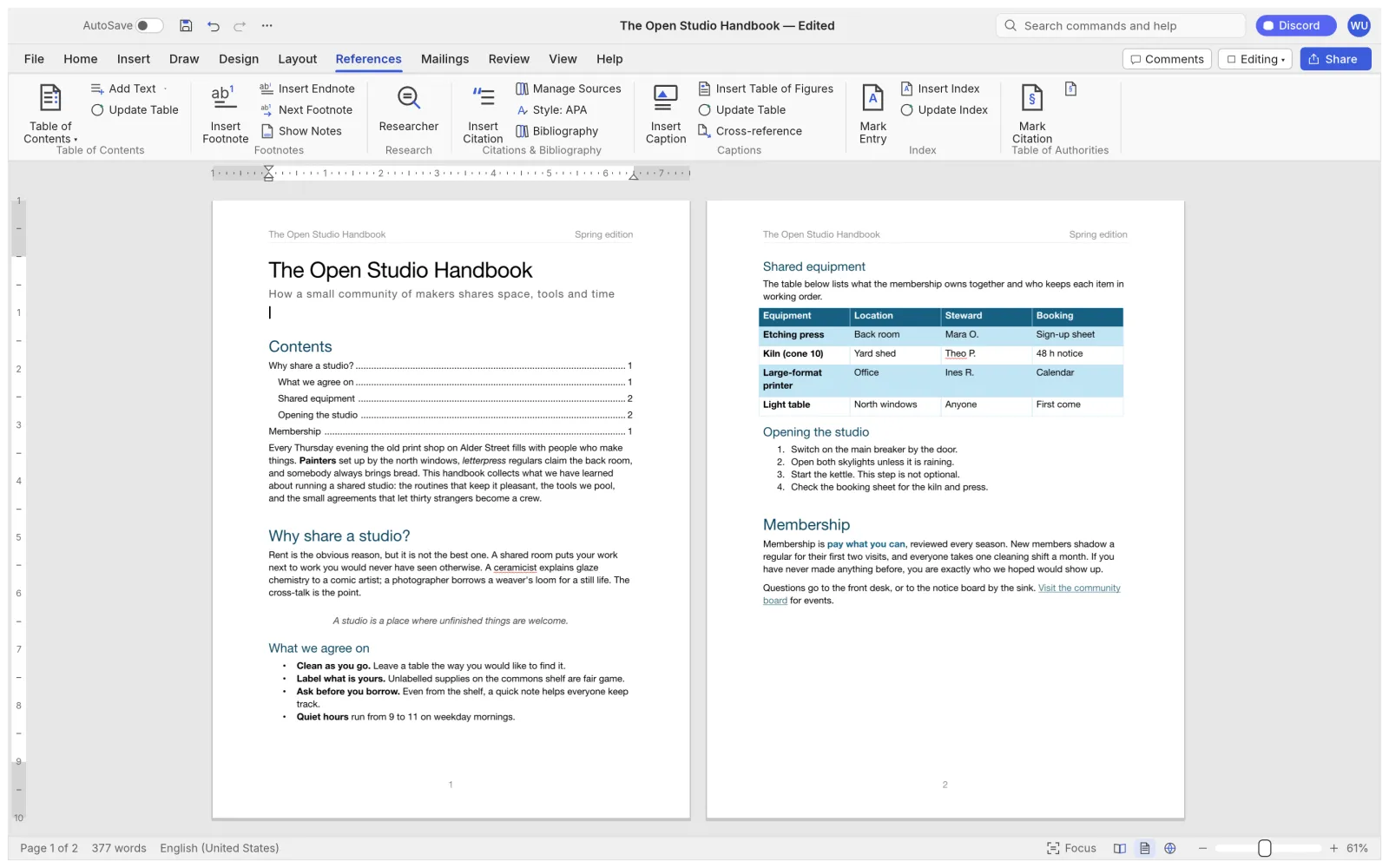
For references, choose a document with a small number of headings and notes that you can check manually. Confirm the order of headings, the target of a cross-reference and the association between a footnote marker and its text. Update generated material after making structural edits, then inspect the output again.
If your workflow depends on automation, macros, specialized add-ins, protected forms or embedded objects, list each dependency explicitly. The ability to open a DOCX does not establish support for every behavior associated with that file. Consult the upstream documentation for the specific requirement and test it before including that workflow in a migration.
Choose the delivery format around the recipient's task
Send an editable document when the next person is expected to revise its content. Send a PDF when the immediate task is reading, approval or printing and the recipient does not need to modify the layout. Often you should keep both: an editable master for the author and a separate viewing copy for delivery.
Use paired filenames such as workshop-plan-review.docx and workshop-plan-review.pdf. If the PDF and editable file represent different revisions, label them clearly. Otherwise a reviewer may approve one version while someone else continues editing another.
Open the actual exported PDF in a viewer. Check the first and last pages, long tables, hyperlinks and text selection where those matter. A successful export action is the start of verification, not its end. For instructions centered on preparing and saving a document online, continue with the online guide.
Make a practical decision, document by document
Sort your results into three outcomes: ready for routine use, usable with a documented adjustment, and keep in the original workflow. An adjustment might be standardizing a font or simplifying an image placement. A blocker might be a required review operation that does not survive the exchange.
Keep the scope narrow at first. Move low-risk internal notes before complex client templates. Ask a colleague to inspect one real handoff before rolling the workflow out to a whole team. Record the application version and test date so that a later release can be evaluated against the same examples.
This approach also makes feedback more useful. A minimal test file, the exact steps and a clear expected result give an upstream maintainer a reproducible problem. Remove private content before sharing a reproduction, and preserve enough structure for the issue to remain visible.
Common WordCraft compatibility questions
Does opening a DOCX prove full compatibility?
No. It verifies only one stage. Saving, reopening and exchanging the edited copy are separate checks. Use the round-trip procedure above for documents that matter to your workflow.
Should every page break match exactly?
That depends on the document. A casual note may tolerate different wrapping; a print-ready form may not. Define the requirement first, then compare fonts and page settings before changing the content.
Can I use browser and desktop results interchangeably?
Do not assume they are identical. Builds, available fonts and file handling can differ. Test the environment you plan to use. The web version guide covers browser-specific checks.
Is there a quicker overview before running these tests?
Yes. Read the site's WordCraft vs Microsoft Word overview, then use this guide to validate the requirements that apply to your own files. Return to the homepage whenever you need the editor or download links.