
1. Install and open a document
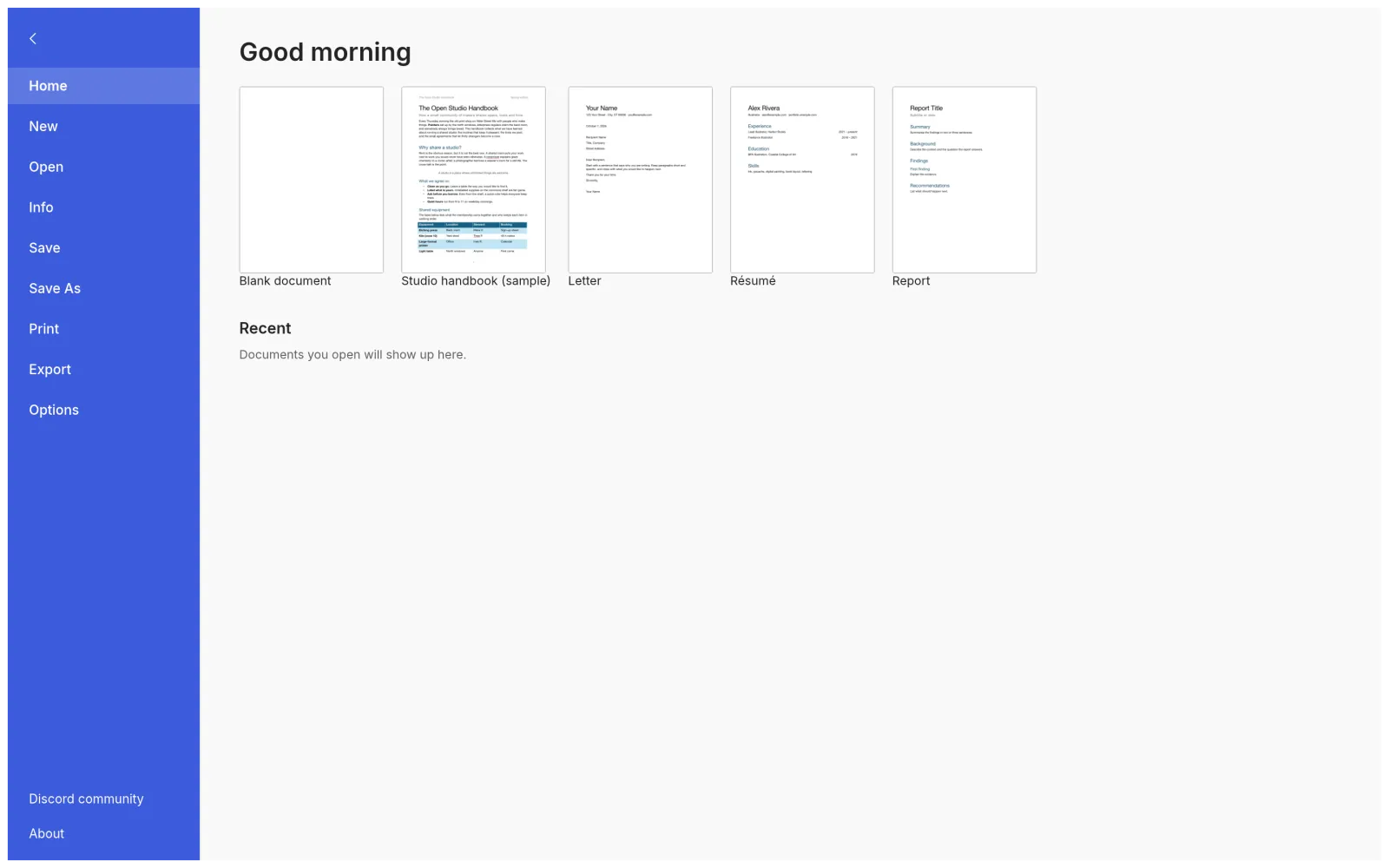
Install WordCraft from the download guide, or open the online version. On first launch you land on the File tab start page.
- Pick Blank document to start from scratch, or a template such as Letter, Résumé, Report or the Studio handbook sample.
- Choose Open to load an existing .docx, .doc, .odt, .rtf, .md or .txt file. Recent documents appear in the list below.
- The interface follows your system language. Chinese, Japanese, Spanish, German and 15+ more are built in.
2. Find your way around the ribbon
The ribbon has the same tabs as Word. Each tab groups related commands:
- File: new, open, save, export to PDF, document properties.
- Home: clipboard, font, paragraph, Styles gallery, find and replace.
- Insert: tables, pictures, shapes, links, headers and footers, fields, symbols.
- Design and Layout: themes, margins, orientation, columns, breaks, watermark.
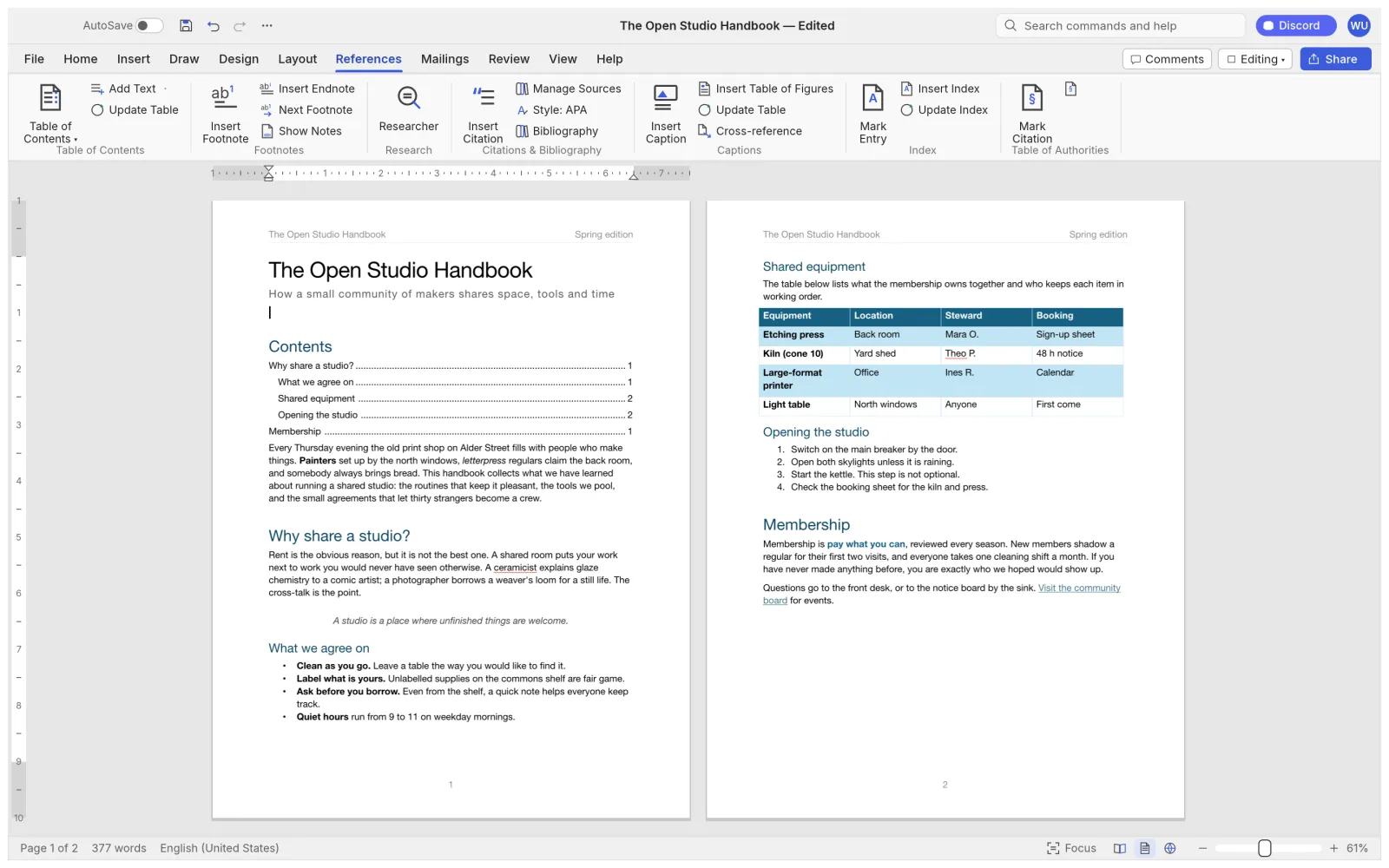
- References and Mailings: TOC, footnotes, citations, mail merge, envelopes.
- Review and View: spelling, comments, track changes, zoom, Navigation pane, dark mode.
Can't find a button? Use command search. Every one of WordCraft's 422 commands can be found by name.
3. Format text and use Styles
Select text and use the Home tab, or the usual shortcuts, to change font, size, colour, bold, italic and underline. Format Painter copies formatting from one place to another.
For headings, use Styles instead of manual formatting: click in a paragraph and choose Heading 1, Heading 2 or Title in the Styles gallery. Hovering previews the style live. Headings then appear in the Navigation pane and in your table of contents.
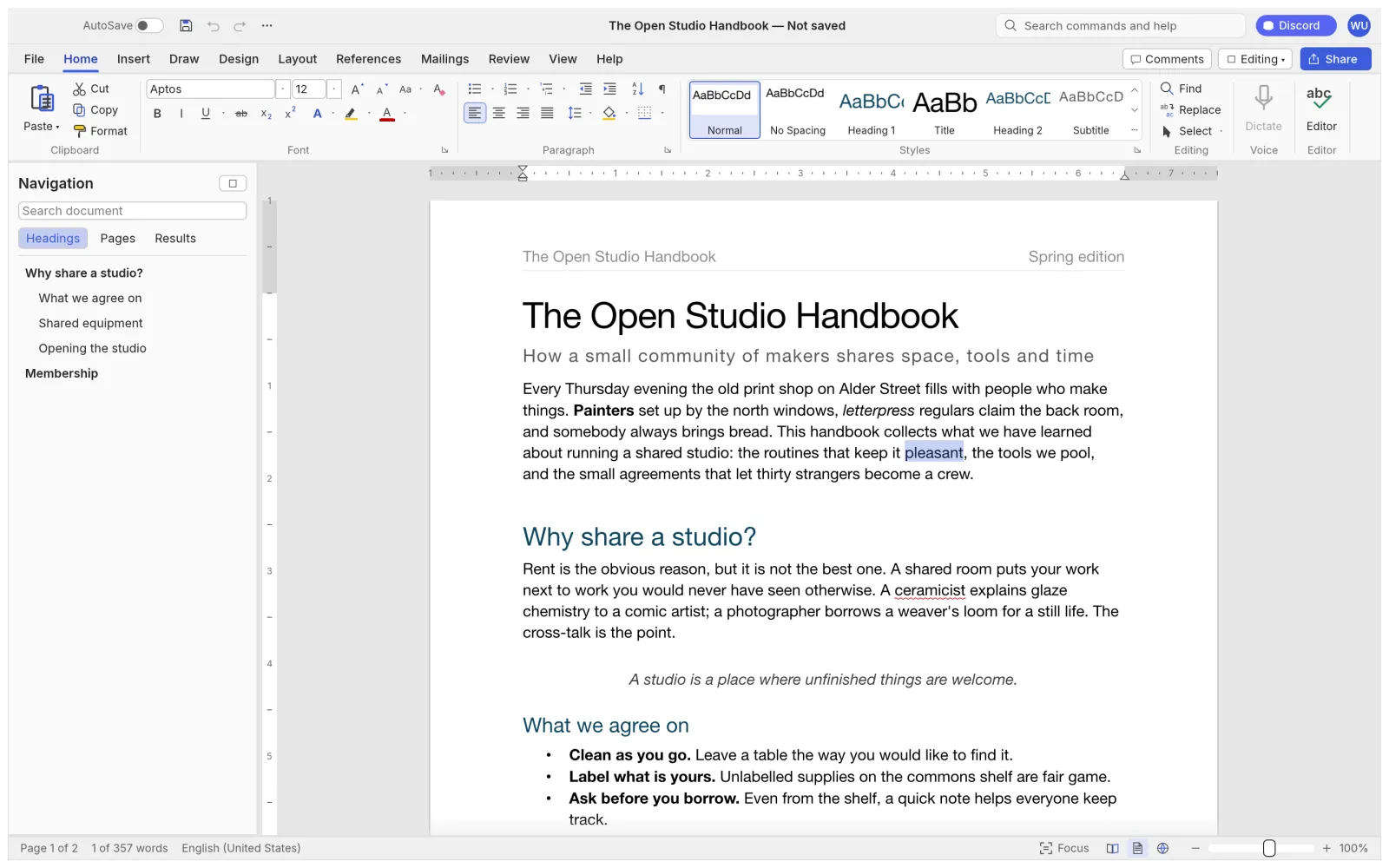
Type * or 1. followed by a space to start a list. Enter continues the list, Tab demotes an item and Shift+Tab promotes it.
4. Tables, pictures and page layout
Insert → Table lets you drag out a grid. Table styles add banded rows; header rows repeat on every page. You can merge and split cells, sort rows and convert text to a table.
Insert → Pictures adds images you can crop, recolour and wrap text around (square, top and bottom, behind or in front of text).
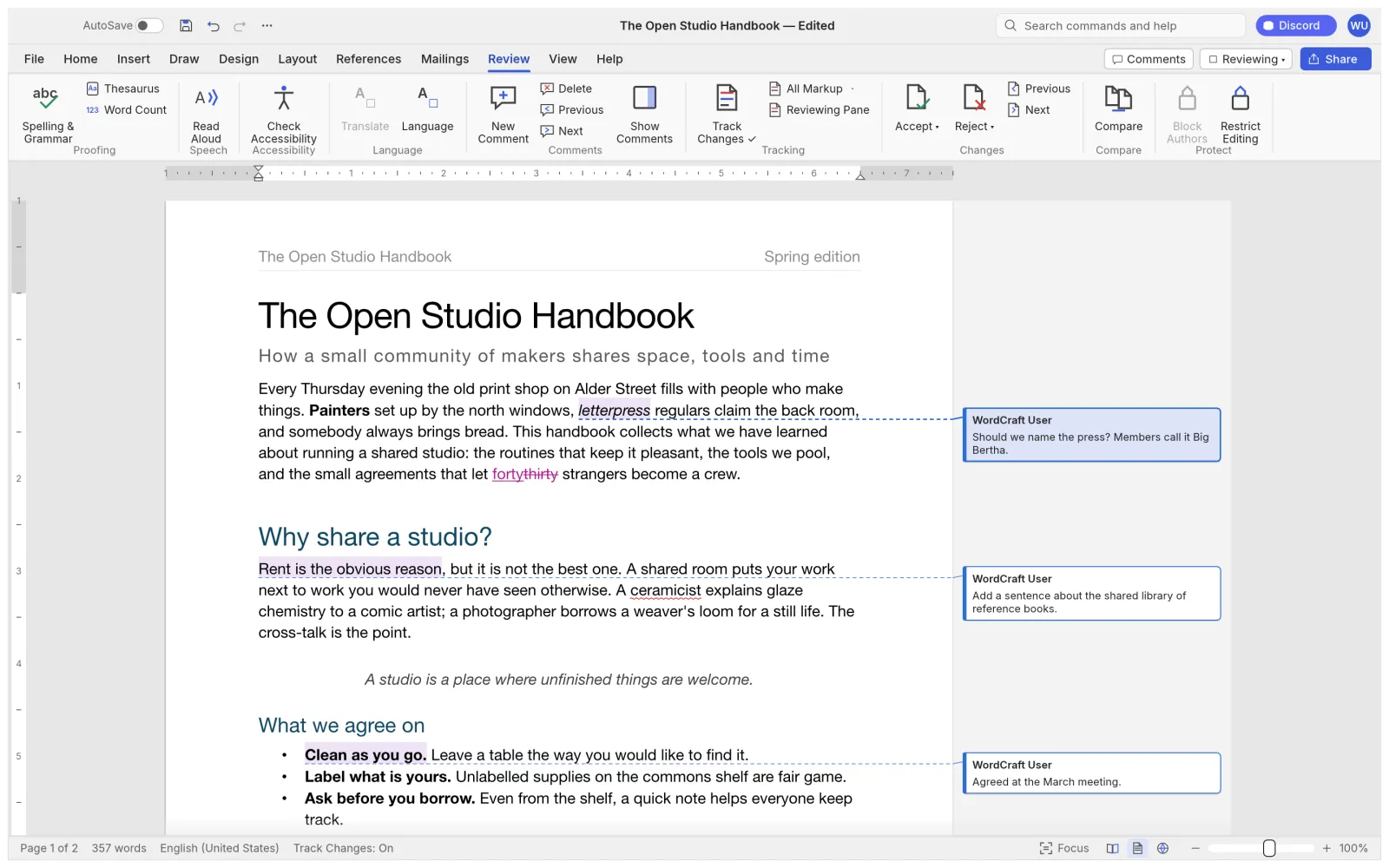
On the Layout tab set margins, orientation, paper size and columns, and insert page or section breaks. Headers, footers and page numbers live on the Insert tab.
5. Track changes and comments
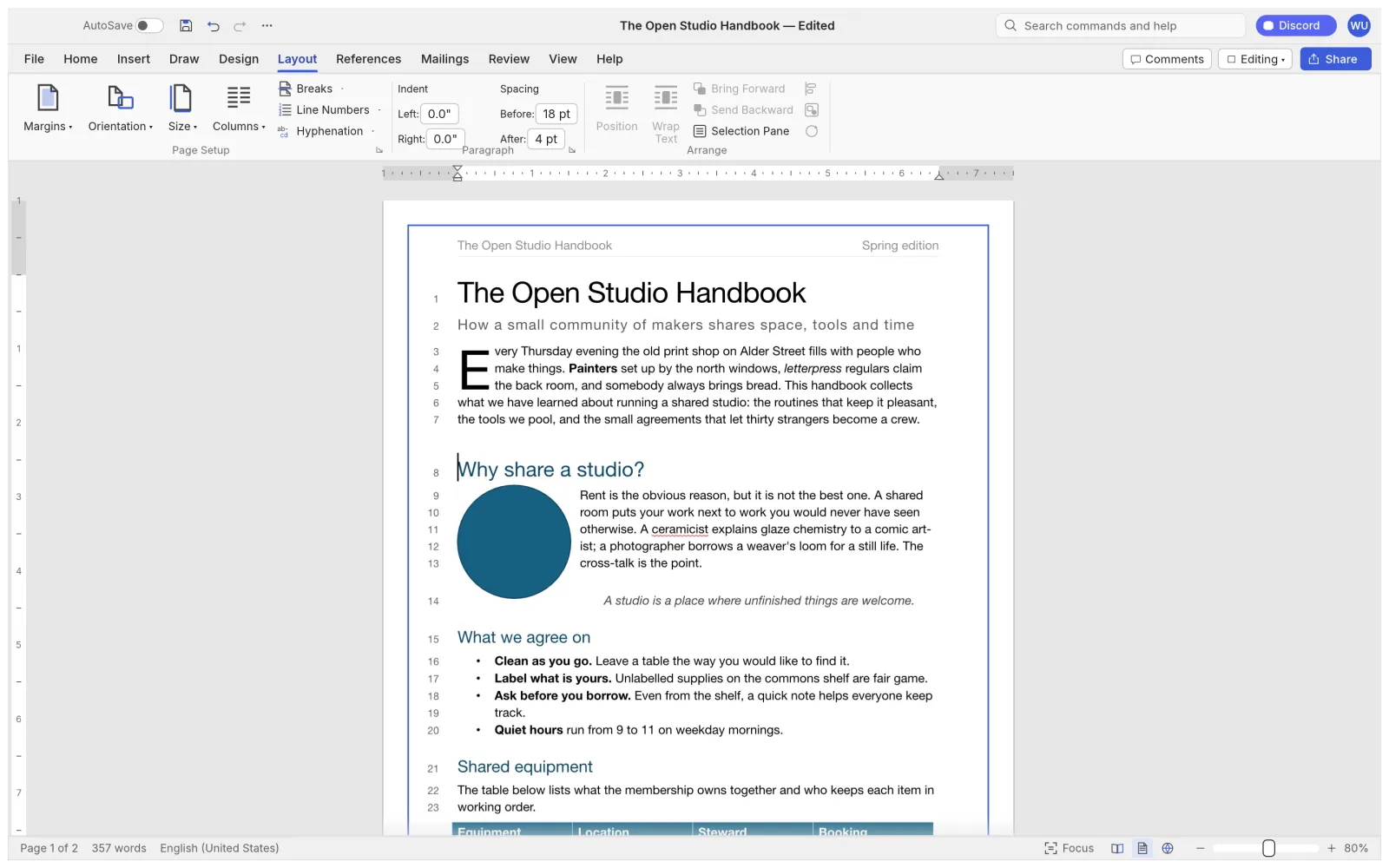
On the Review tab, turn on Track Changes. Insertions and deletions are marked in colour, and each one can be accepted or rejected, one by one or all at once.
Select text and click New Comment to add a comment balloon in the margin. Compare Documents shows the differences between two versions of a file.
Spelling and grammar are checked as you type, offline. Press F7 to step through suggestions.
6. Table of contents, footnotes and citations
Once your headings use Heading styles, References → Table of Contents builds a TOC with page numbers. Update it after editing.
Insert footnotes and endnotes, add sources and citations in APA, MLA, Chicago or IEEE style, then insert a bibliography, captions, a table of figures or an index.
7. Save, export and share
Save keeps your document as .docx, so colleagues using Word can open it. Use Save As to choose .odt, .rtf, .html, .md, .tex or .txt.
File → Export → PDF creates a PDF with real, selectable text, working links and bookmarks.
Tip: WordCraft is in alpha. Keep a backup of important files and check complex documents after saving.
8. Keyboard shortcuts
WordCraft follows Word's shortcuts. On a Mac use ⌘ instead of Ctrl.
| Shortcut | Action |
|---|---|
| Ctrl + B | Bold the selection, or the word under the caret |
| Ctrl + I | Italic |
| Ctrl + U | Underline |
| Ctrl + S | Save |
| Ctrl + Z / Ctrl + Y | Undo / redo |
| Ctrl + F / Ctrl + H | Find / replace (regular expressions supported) |
| F4 | Repeat the last action |
| F7 | Spelling and grammar |
| F8 | Extend the selection |
| Tab / Shift + Tab | Demote / promote a list item |
9. Power users: command line and AI agents
The wordcraft-cli tool converts and inspects documents without opening the app:
wordcraft-cli convert report.docx report.pdf   # docx, pdf, odt, rtf, html, md, tex, txt, png
wordcraft-cli text report.docx                 # plain text
wordcraft-cli inspect report.docx              # structure as JSON
WordCraft also ships an MCP server, so AI agents such as Claude can create and edit documents with the same commands you use in the ribbon:
claude mcp add wordcraft -- wordcraft-cli mcpNext steps
Questions or a bug? The ArtCraft Discord is the fastest place to ask, and GitHub issues are where bugs get fixed.