Browser setup & troubleshooting
WordCraft Web Version: Saving, Fonts and Browser Troubleshooting
Understand the WordCraft web version: start the browser editor, find saved files, add fonts, handle a blank screen and choose when to use desktop.
Last updated: 2026-11-05 · 9 min read
The WordCraft web version lets you open the editor through a browser, but it still needs a working graphics environment, available fonts and a successful way to save files. Most confusing browser sessions become easier to diagnose when you separate these concerns. A missing font is different from a failed application load, and a canceled save dialog is different from a lost download.
This guide explains the web build hosted by this site and a practical troubleshooting order. Start at the WordCraft online page, which includes normal and compatibility-mode links. If you want a writing exercise rather than browser setup help, use the online document workflow. The homepage links to both the editor and desktop alternatives.
Understand what the web version does
WordCraft's browser build uses WebAssembly. In this site's hosted build, the server delivers the application assets; the editing work happens in the browser. Opening the editor is not the same as opening a cloud document service with a server-side file library, shared document history or automatic synchronization between computers.
The build hosted here is based on v0.7.0 and includes local changes for multilingual fonts and browser save handling. You can inspect the hosted-build notice for the pinned upstream revision and changes. The official WordCraft project may have newer releases. Keep that distinction in mind when following screenshots or reporting an issue.
Browser caching can make a later visit start faster, but cache contents are not a dependable backup of your work. A browser can evict cached assets, a private session can discard state, and a different browser profile has different storage. Save a document to a location you control and verify that copy.
It helps to picture three separate things: the application downloaded by the browser, the document currently open in memory, and the file you save to your device. Seeing the application again does not prove that the document was saved. Finding an old file on disk does not prove that your latest changes are in it.
Check the first launch with a small document
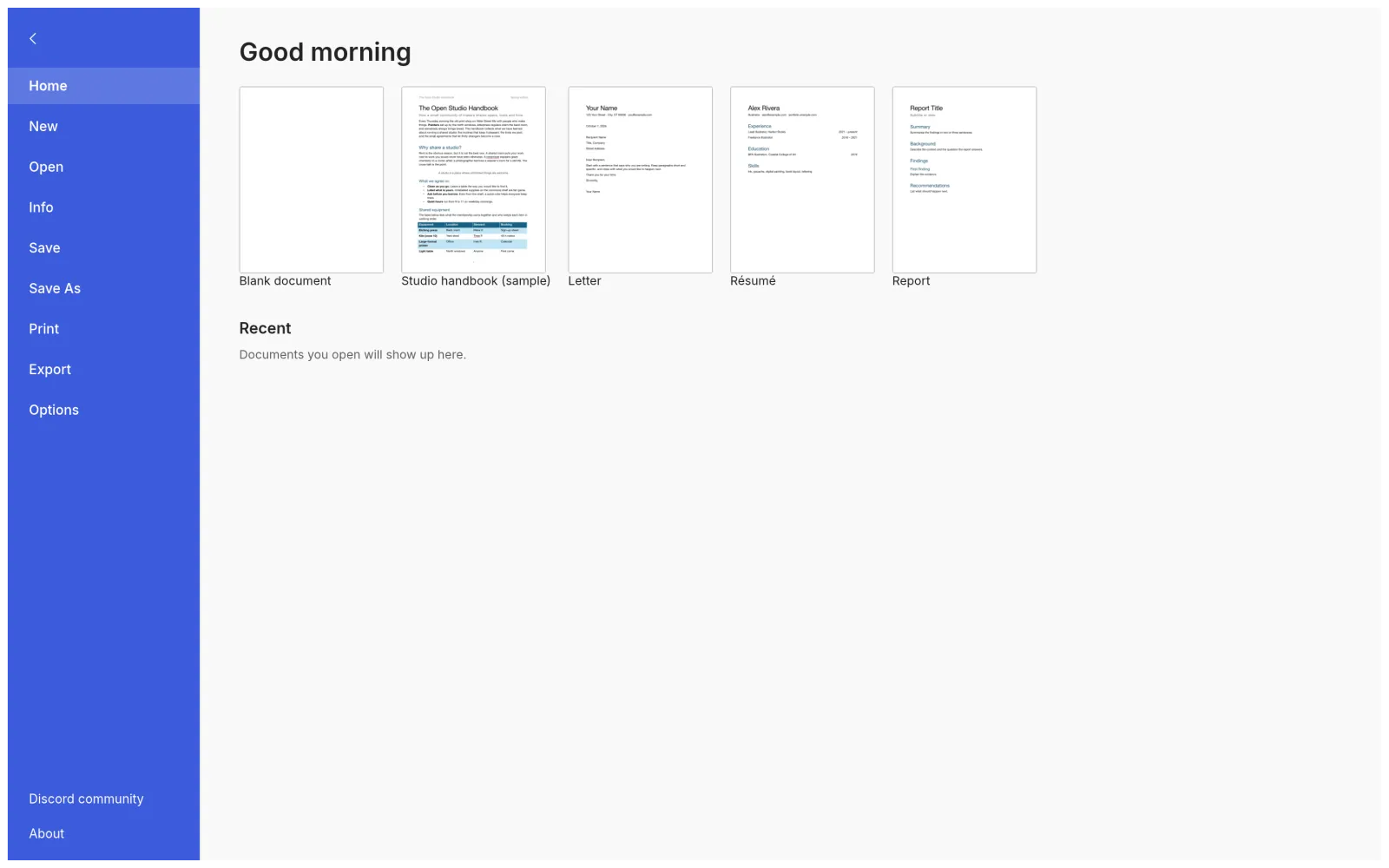
Open the online page in a recent desktop browser and use its editor link. Allow the application and fonts to finish loading before trying to interact. If you are using an embedded editor, opening it in a separate tab gives the application more space and makes browser messages easier to see.
Start with a blank document and enter a short line such as “Browser save test, Thursday.” Add a second line containing any script or symbols you need for real work. This gives you a minimal test for typing, font display and saving without involving a complicated imported file.
Save the document, identify the resulting file and reopen it. If this small test succeeds but a long report does not, the problem is more likely to involve that report's content, layout or resource demands. If the small test fails, investigate the browser environment before trying more complex documents.
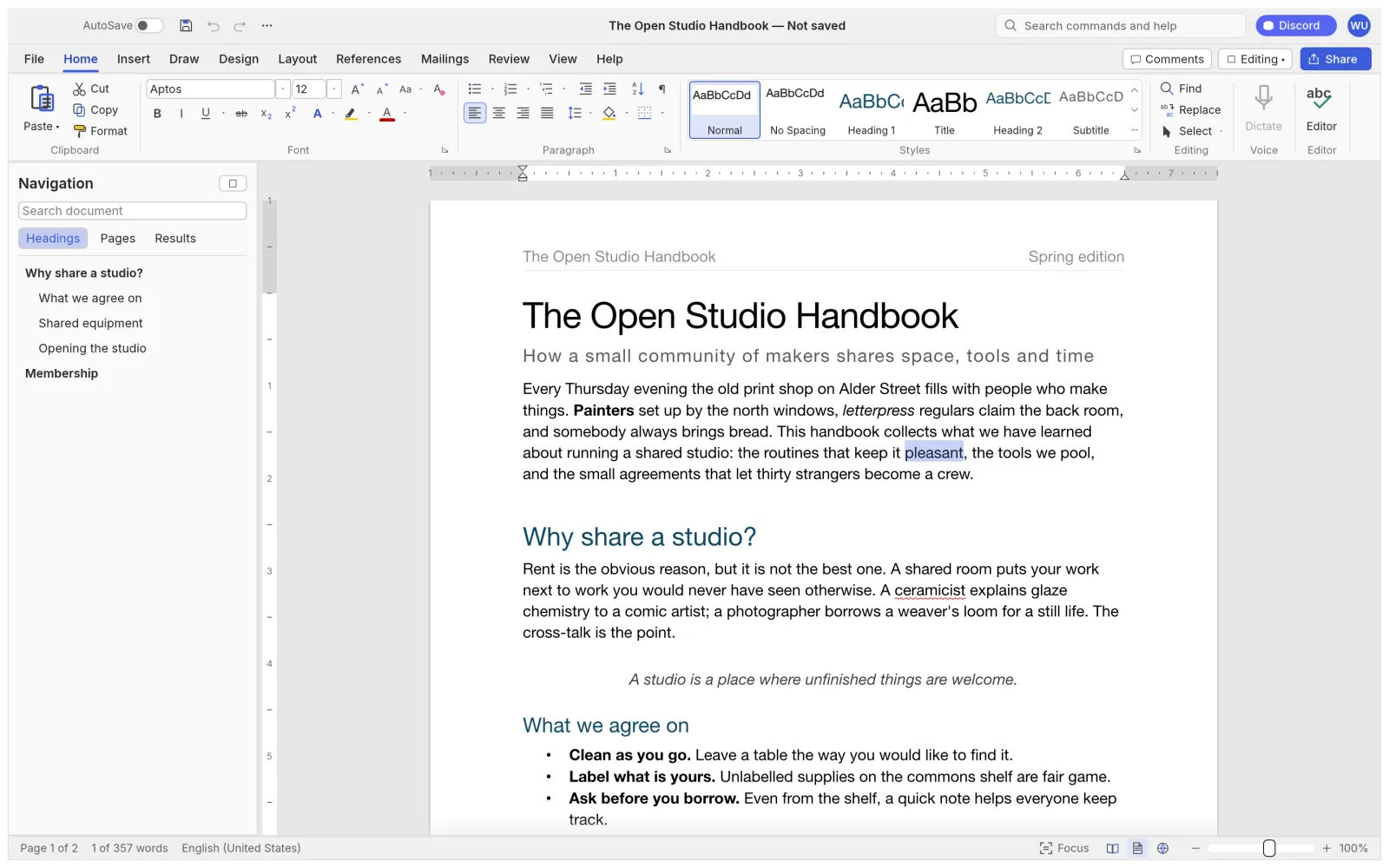
When describing a failure, note the browser name, operating system, hosted version and the stage where it occurs. “The loading screen never finishes” and “the document opens but a font is missing” lead to different investigations. A short, precise description saves time.
Understand the two browser save outcomes
In this site's build, saving may open a file picker or result in a normal browser download, depending on browser capabilities and policy. The hosting modifications provide a download fallback when the save picker is denied. Explicitly canceling the picker still cancels the save; cancellation should not be interpreted as a background download.
After using Save, look for evidence of one of these outcomes. If a picker appeared, complete it and remember the chosen location. If a download started, inspect the browser's downloads list and locate the file on disk. If neither happened, keep the editor open and investigate instead of assuming that the command succeeded silently.
Repeated downloads may produce filenames with suffixes, such as (1) or (2). Compare the modification time and the contents before deciding which file is current. Move the intended version into a clear working folder and rename it deliberately. Otherwise the next session may begin from an older copy that happens to have the cleanest filename.
For an important session, use a short verification loop: save, open the saved file, inspect a recent edit, then continue or close. A sentence near the end of the document is a useful marker because it is unlikely to be present in an early draft. Also check a table or image if you changed one.
If the save flow is blocked, avoid refreshing the tab while it contains unsaved work. First check for a hidden browser prompt, a blocked download notice or a picker behind another window. If the editor remains usable, preserve essential text through a separate local copy where possible while you investigate the file flow. Do not clear browser data as the first response to an unsaved-document problem.
Fix missing fonts and missing characters separately
A font mismatch means text displays in a different typeface or wraps differently. A missing-glyph problem means some characters appear as empty boxes or fail to render correctly. Both concern fonts, but they require different checks. A font may look correct for English letters and still lack the characters needed for another language.
The hosted build includes multilingual fallback fonts. It cannot automatically assume access to every font installed on your operating system. For another font, the site's editor instructions point to Add Font at the bottom of the font menu or dropping a licensed font file into the editor. Supported font inputs are described in the build notice.
Before importing a font, check that you have permission to use it and that it contains the characters your document needs. Test a short line with representative letters, punctuation and numbers. For multilingual text, include an actual sentence in each language rather than judging from a font's name.
After changing fonts, recheck line breaks, table widths and page count. A font substitution can make a table wider or push a heading to the next page. Resolve the font choice before trying to repair those secondary layout effects with manual spacing.
Do not confuse interface language with document typography. Changing the language of menus does not necessarily change the font applied to an imported paragraph. Similarly, adding a document font does not translate the application's labels. Check the setting that matches the problem you can actually see.
Troubleshoot a blank or broken editor in a useful order
First identify when the failure occurs. If the application has never loaded, check the network connection and whether the loading shell reports an error. If it loads and only a particular document fails, return to a small test file after preserving any current work. That separates startup problems from document-specific ones.
The online page provides a compatibility-mode link using ?webgl. Try that link for a blank or incorrectly rendered editor when no unsaved document is at risk. It selects the WebGL rendering path in this site's hosting setup. A compatibility link is a troubleshooting option, not a guarantee that every device or browser policy will support the application.
Next, try the same small test in another current browser on the same computer. Change one variable at a time and record the result. If you simultaneously change browser, machine, document and font, a successful launch tells you very little about which change helped.
On a managed work or school computer, browser or graphics restrictions may be controlled by the organization. Check the permitted environment rather than repeatedly changing unrelated application settings. If you ask for technical help, include the visible error message and whether normal and compatibility mode behave differently.
Only consider clearing site data after you have preserved documents and understand that local preferences or cached resources may be removed. A clean profile can be a useful diagnostic, but it should not become an accidental way to discard the only open copy of a document.
Check focus before diagnosing keyboard problems
If a shortcut does not affect the document, click inside the editing area and try a simple action such as typing one character and undoing it. Browser shortcuts, the address bar and controls outside an embedded editor can receive keyboard input instead of the document.
For a save shortcut, inspect the outcome carefully. A browser's own “save page” dialog is not the same as saving an editable DOCX. If the dialog offers a web page rather than a document, return focus to the editor or use its File menu and verify the correct file type.
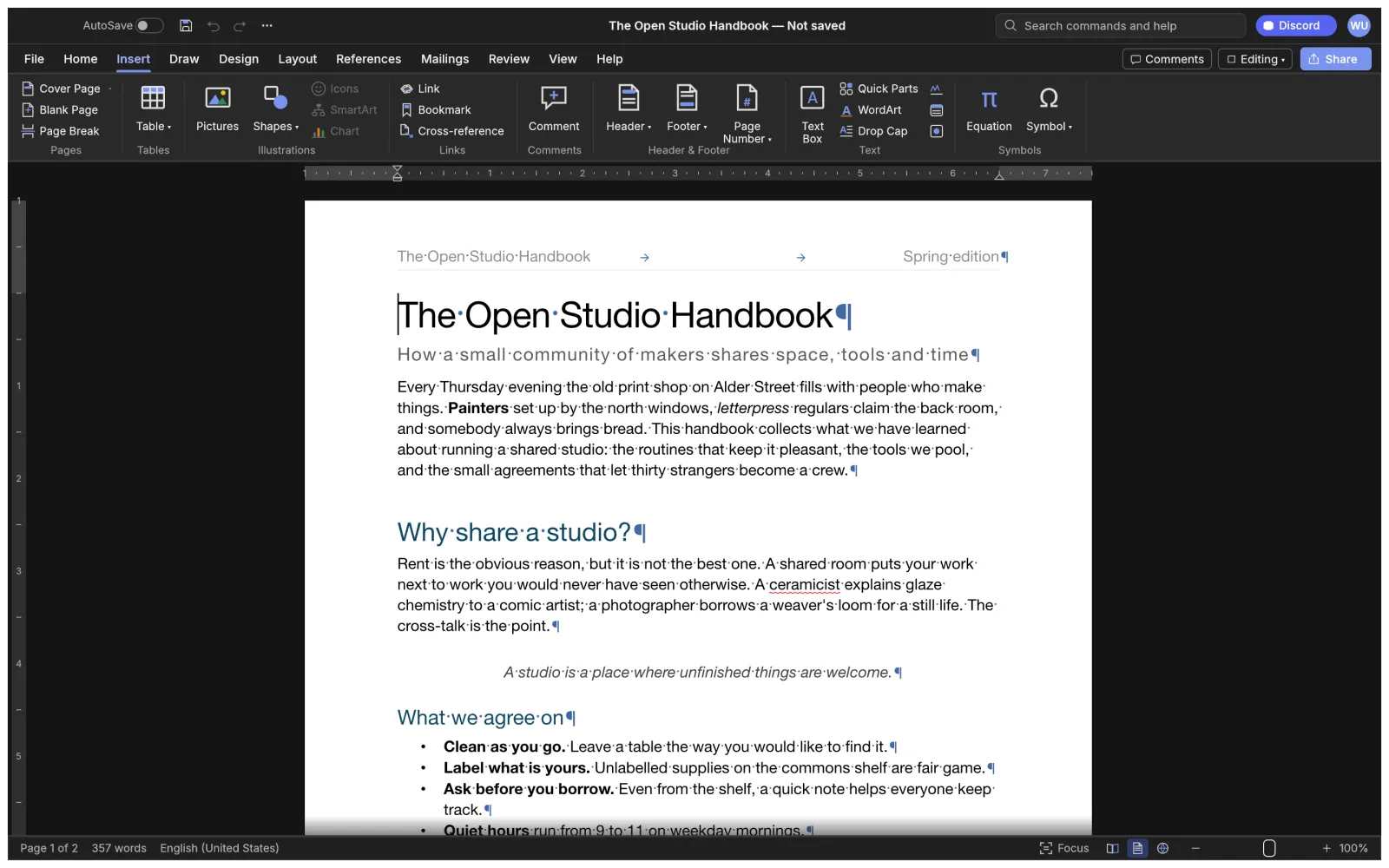
When the ribbon feels cramped, enlarge the browser window or open the standalone editor tab. On a small touchscreen, dense document controls can be awkward even when the application loads. For sustained work, a larger screen and a physical keyboard are usually easier to evaluate than a phone-sized viewport.
If the text appears unusually large or small, check browser zoom separately from the editor's document zoom. These controls affect different layers of the interface. Return them to a known setting before comparing layout with another application.
Know when a desktop workflow is the better next step
Consider the desktop app when browser startup, graphics policy or file prompts repeatedly interrupt your work. Use the download guide to find the platform options and official releases. Test a saved copy of the same document so that you can compare environments without introducing unrelated changes.
Keep the browser version for situations where it works well: a quick trial, a short editing session or access from a computer where installing software is inconvenient. Use evidence from your own files to decide. Convenience should include recovering the finished file, not just reaching the editing screen quickly.
For documents exchanged with other applications, follow the DOCX compatibility guide in either environment. Changing from browser to desktop does not remove the need to verify fonts, page layout and the recipient's saved copy.
Common questions about the web version
Is the web version the same release as the latest desktop app?
Not necessarily. This site's hosted build is based on v0.7.0. Check its build notice and the official releases separately when comparing features or reporting behavior.
Where is my document after I press Save?
Check the location selected in the file picker or the browser's downloads list. If you canceled a picker, the save was canceled. Reopen the actual file to verify your latest changes.
Can I rely on the browser cache for offline work?
Do not treat cached application files as a guaranteed offline workflow or a document backup. Test the exact environment before depending on it, and keep verified document files outside the browser session.
Why does the same DOCX wrap differently on another computer?
Start with fonts and page settings. Then check table widths and object positioning. A file format being supported does not ensure identical rendering under every font and layout environment.
Where should I go after solving the browser setup?
Follow the online writing guide for a complete document exercise, or return to the WordCraft homepage for the editor, tutorials and download entry points.