
WordCraft Table of Contents: Generate It and Fix Heading Styles
Build an automatic contents list, diagnose missing or extra entries and update page numbers after editing.
An automatic table of contents works best when the document already has a clear heading structure. Large bold text alone does not necessarily make a paragraph a heading. If a title is missing from the contents list, inspect its style before typing a manual replacement into the generated table. The repair usually belongs in the source paragraph or the table's level settings.
This exercise uses a short report with three sections so you can see how heading changes affect the result before applying the technique to a long document.
Give the report a consistent heading hierarchy
Write three section titles: Overview, Method and Findings. Apply Heading 1 to each from the Home styles controls. Under Method, add Preparation and Review as Heading 2 paragraphs. Keep the main document title in a title style and ordinary text in the body style. Do not use headings merely to enlarge a sentence for emphasis.
Check the Navigation pane if available. The outline should reflect the report's structure, with the two subsections under Method. If a paragraph looks like a heading but does not appear in the outline, inspect its applied style and outline level. If ordinary text appears as a section, it may have inherited a heading style during pasting.
Adjust the appearance by modifying the heading style rather than formatting every title independently. This keeps both the visual hierarchy and the structural hierarchy consistent when you later add a new section.
Insert the table and choose the required depth
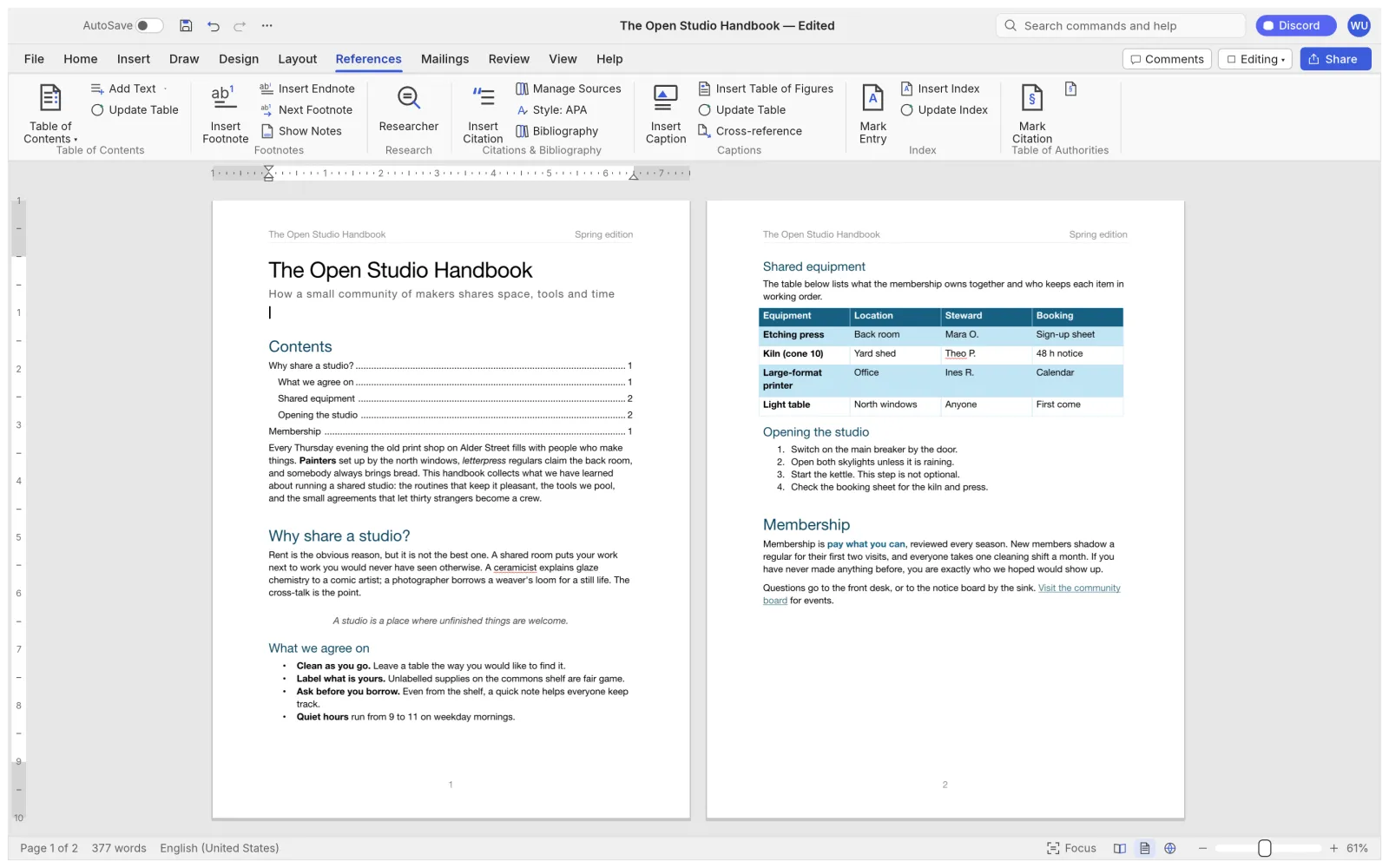
Place the caret where the contents list should appear, usually after the cover and before the body. Open References, then Table of Contents. The v0.18.1 References controls include automatic tables with two or three levels and a custom-table option. Choose two levels for this exercise so the three sections and two subsections are included.
Check the entries before adjusting fonts or leaders. You should see the intended headings in document order. If a heading is missing, compare its style with a heading that appears correctly. If the list includes too much detail, reduce the selected depth or correct paragraphs that were assigned the wrong level.
Avoid typing missing entries directly into the generated contents list. A later update can replace manual edits, and a typed page number will not reliably follow the heading when text moves.
Repair common style problems in the source
For an imported document, headings may use custom styles. Use the custom table's options where appropriate to map those styles to levels, or apply the built-in heading styles consistently to a copy. Preserve the original while testing so you do not accidentally flatten a carefully designed report.
If an entire paragraph appears in the contents list, separate the heading from the following body text with a proper paragraph break and apply the correct style to each paragraph. If a heading is listed twice, inspect the body for duplicate paragraphs or an unintended heading-style caption. Correct the source, then update the table.
Update after editing and verify the saved file
Add a new paragraph before Findings and rename Review to Final Review. Use References, Update Table, then inspect both the heading text and the page numbers. If the update control offers a choice between page numbers and the entire table, use the entire-table option when headings were added, removed or renamed.
Save the DOCX and reopen it. Check the contents list against the actual heading pages, then inspect an exported PDF and try its navigation links where available. Page numbers can change when another computer uses different fonts, so also read the font substitution checklist. For reports with separate front matter or appendices, continue with section breaks and page numbering.
Independent editorial guidance. See our sources and correction policy.