
WordCraft PDF Export vs DOCX: Choose the Right File to Send
Decide when to send PDF, DOCX or both, then check fonts, review marks and the receiving application.
Before choosing an export format, decide what the recipient needs to do. Someone approving a final quotation needs a dependable reading copy. A colleague rewriting a proposal needs an editable document with usable structure. PDF and DOCX serve different stages of that process. Sending both can be sensible, provided their names and contents make clear which version is authoritative.
WordCraft supports DOCX reading and writing and PDF export, as described in the official project documentation. That feature list does not establish that a particular file will render identically in every viewer. The following checks focus on the actual deliverable.
Use DOCX when editing must continue
Keep a DOCX master while you are working. It retains an editable document model: paragraphs, styles, tables and the supported review information. A recipient can revise wording, change a heading or update a table without reconstructing the document from a printed page.
The tradeoff is that another editor may lay out the file differently. Fonts, section settings and supported features influence the result. If the recipient must continue editing, send a clearly named DOCX and ask them to open a short representative sample before a large handoff. Include a PDF reference when a specific page arrangement matters.
Do not treat the PDF reference as a second editable master. Agree that revisions belong in the DOCX, then regenerate the PDF after the changes are accepted. Otherwise the two copies can quietly diverge.
Use PDF for the finished reading copy
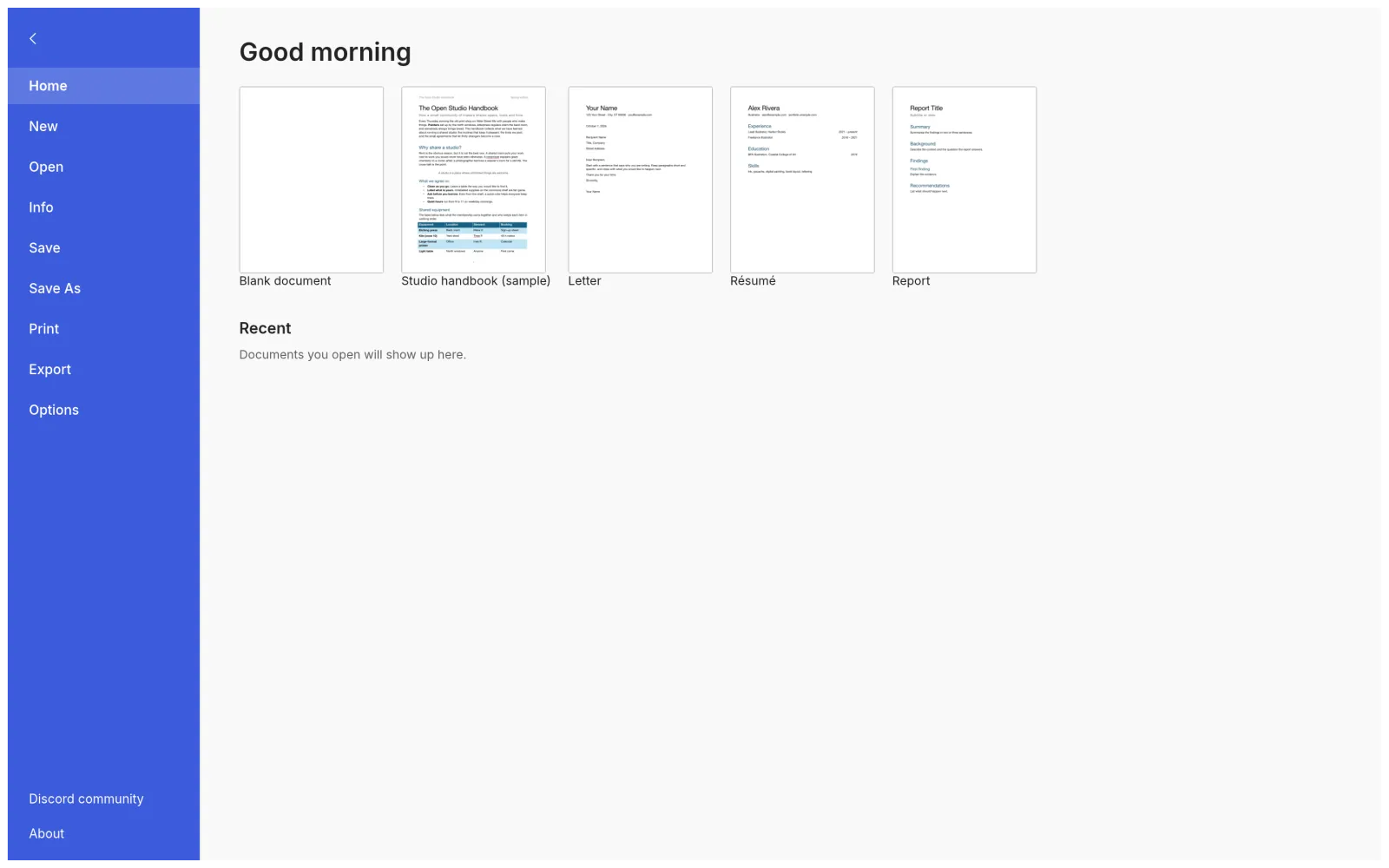
Once the text is approved, use WordCraft's File export controls to create a PDF. Save the DOCX first, then export under the same revision label, for example proposal-03.docx and proposal-03.pdf. In the browser editor, finish the download or save dialog and locate the output on disk.
Open the PDF in a separate viewer. Inspect the first page, the final page and every page containing a table, image, footnote or unusual symbol. Check that the intended page size was used and that nothing is clipped at the margins. Select a line of text and try a link if searchable text and working links matter to your recipient.
A PDF does not automatically make a document confidential or impossible to edit. Also, a readable PDF is not by itself proof of accessibility compliance. Treat those as separate requirements and verify the features that your recipient actually needs.
Resolve review material before delivery
Review the document with changes and comments visible before making a clean copy. Decide which edits to accept and which questions to close. Merely hiding revision marks in the editor does not prove that they are absent from a saved DOCX or from an export.
After exporting, inspect the actual PDF for comment balloons, struck-out wording, unexpected blank pages and missing characters. If the PDF looks wrong while the DOCX looks correct, check font availability and the export path. If both look wrong, fix the source document before exporting again. Our font substitution checklist helps separate font issues from page settings.
For a final handoff, state the expected action in your message: read the PDF, edit the DOCX, or compare the two. Keep your original working copy and the exact files you sent. For documents that must survive repeated editing between applications, work through the DOCX compatibility assessment before relying on a new workflow.
Independent editorial guidance. See our sources and correction policy.